
Zoho Social Dashboard: Alternatives for SaaS Teams
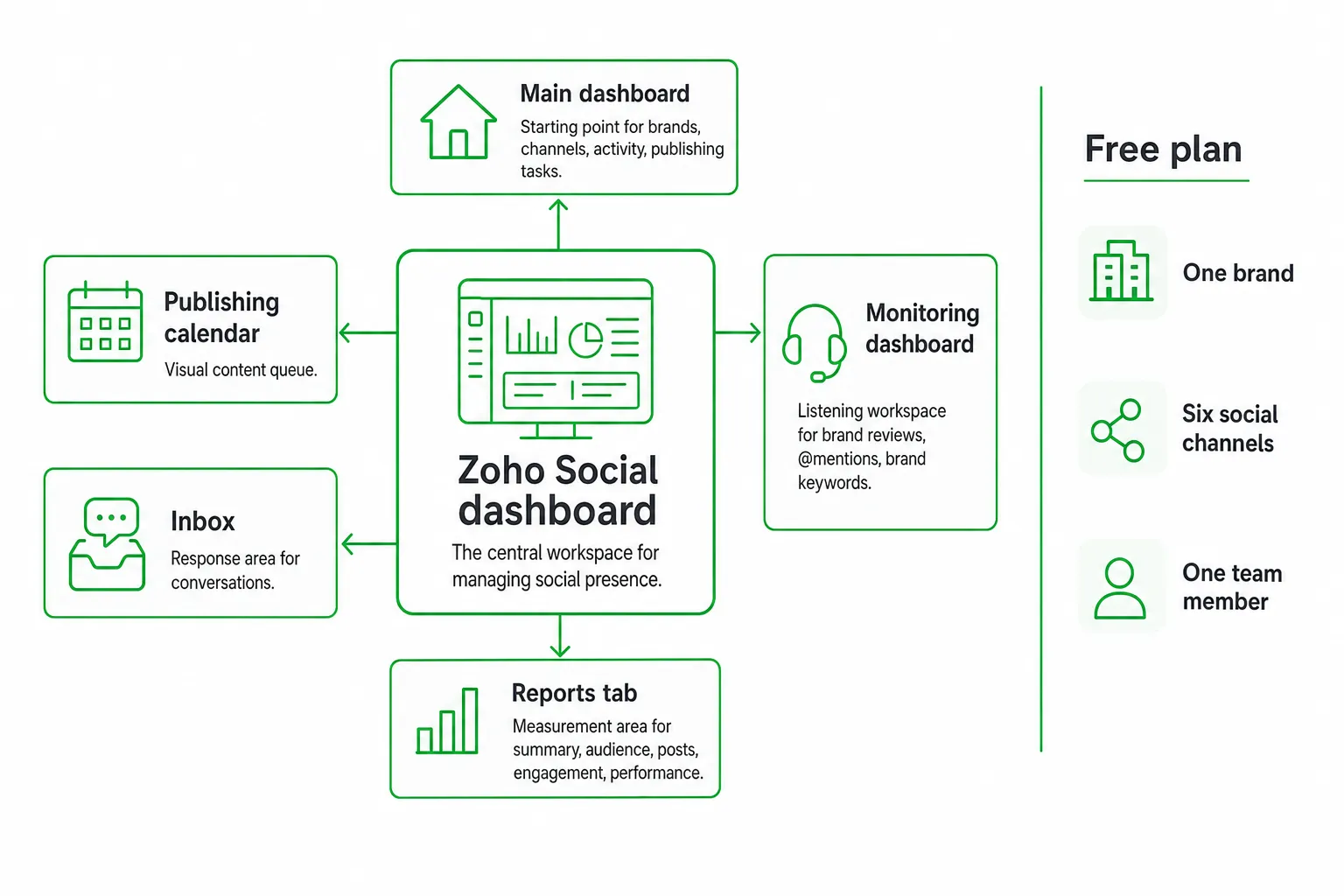
The Zoho Social dashboard is Zoho’s workspace for publishing posts, monitoring conversations, managing responses, and reviewing social performance. It can give a SaaS team a structured way to move from content planning to measurement, but the useful features vary by plan, connected network, brand, and team workflow.
That distinction matters. A dashboard that looks complete may still leave you checking separate views for listening, inbox work, reports, approvals, and lead follow-up. Compare the workflow, not just the feature list.
Key takeaways
- Use the main dashboard for workspace navigation, the calendar for publishing, monitoring columns for active listening, and Reports for retrospective analysis.
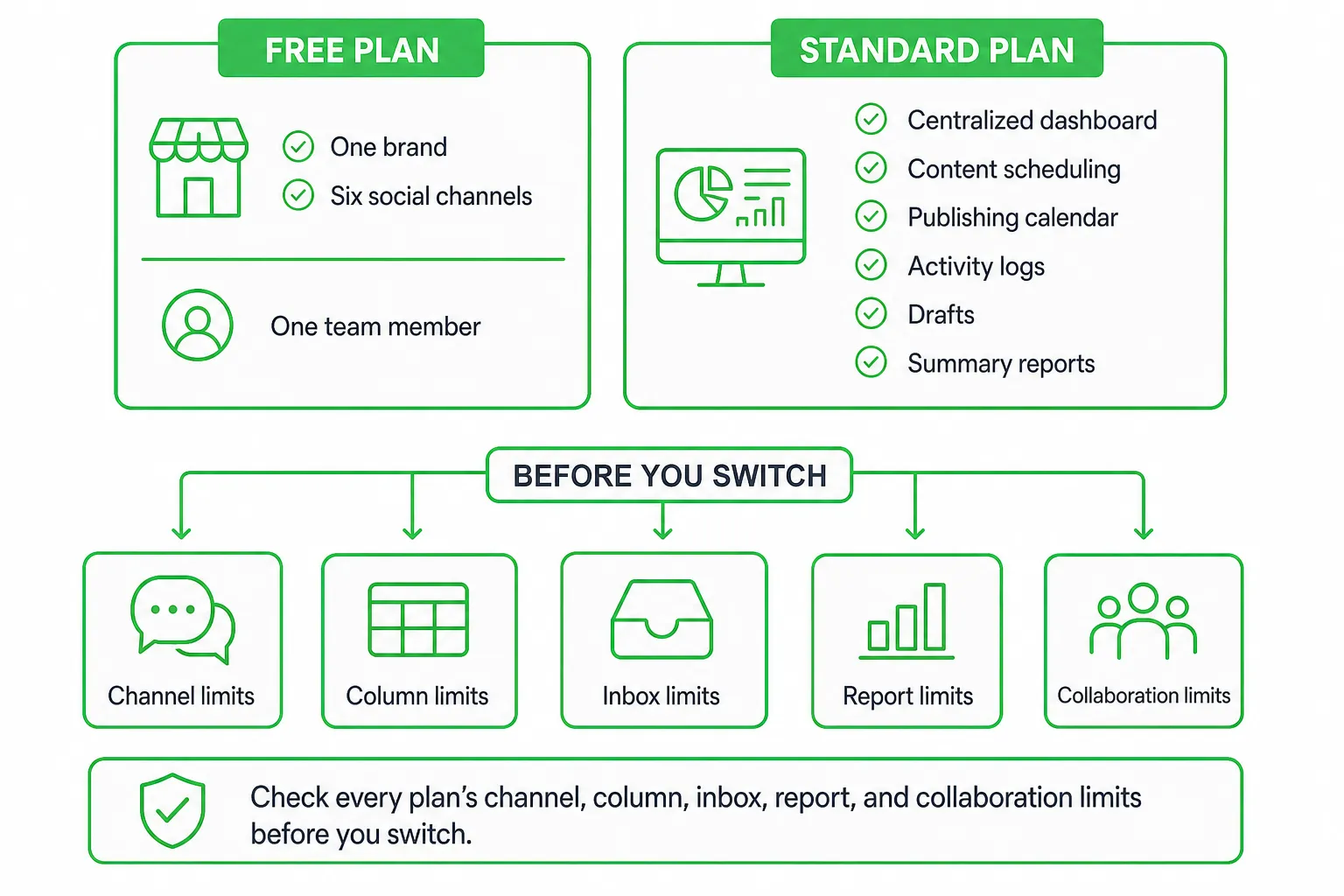
- Zoho Social’s free plan includes one brand, six social channels, and one team member, according to Zoho Social Plans and Pricing.
- Monitoring finds conversations that need action. Reporting explains what already happened.
- Check every plan’s channel, column, inbox, report, and collaboration limits before you switch.
- Choose an alternative if you want social publishing connected to broader AI content operations, SEO, or pipeline generation.
What Is the Zoho Social Dashboard?
The Zoho Social dashboard is the central workspace for managing your social presence. You can create and schedule posts, review drafts, monitor mentions and keywords, handle conversations, and inspect performance data.
Think of it as several work areas connected by one navigation system:
- Main dashboard: Your starting point for connected brands, channels, recent activity, publishing tasks, and access to other views.
- Publishing calendar: Your visual content queue. You can preview planned posts, review published content, and reschedule planned posts by dragging and dropping them, according to Zoho Social Features.
- Monitoring dashboard: Your listening workspace for brand reviews, @mentions, and brand keywords.
- Inbox: Your response area for incoming conversations and social interactions, where available on your plan and connected network.
- Reports tab: Your measurement area for summary, audience, posts and engagement, and performance reports, according to Zoho Social Help.
For a small SaaS team, that separation is useful. Your content owner can work in the calendar while a founder reviews mentions and a marketer checks reporting. It also creates a risk: teammates may confuse a monitoring view with an inbox or assume every report and response feature is available on every plan.
Channel and brand capacity also vary. The free plan includes one brand, six social channels, and one team member, as listed by Zoho Social Plans and Pricing. Treat that as a starting point, not a forecast for a growing team.
What You Can Do Inside the Dashboard
Publishing: Build and control the queue
Create posts, save drafts, schedule content, review your activity log, and manage upcoming content from the publishing area. The calendar gives you a higher-level view than a single post editor, so you can spot gaps, repeated topics, or posts that need a new time.
Zoho Social’s Standard plan includes a centralized dashboard, content scheduling, a publishing calendar, activity logs, drafts, and summary reports, according to Zoho Social Plans and Pricing.
Monitoring: Find conversations worth your time
Create listening columns for brand reviews, @mentions, and brand keywords. Then scan for product questions, complaints, comparison requests, and conversations where a helpful SaaS answer makes sense.
Monitoring is not just a brand-protection exercise. It can help you find people explaining a problem your product solves. You still need a response policy, ownership rules, and a way to record what happens next.
Engagement: Move from signal to response
Use monitoring and inbox views to identify incoming conversations. Assign ownership where your plan and workflow support it, draft a useful response, and record follow-up actions for sales or customer success.
Keep public replies helpful and specific. Answer the question first. Mention your product only when it genuinely fits the conversation.
Analytics: Review the outcome
Use the Reports tab to review four report groups: summary, audience, posts and engagement, and performance. These views answer different questions:
- Summary: What happened across the selected social activity?
- Audience: Who is following or engaging with you?
- Posts and engagement: Which content attracted reactions?
- Performance: How did your social activity perform against the measures you track?
Monitoring vs. Reporting: Which View Do You Need?
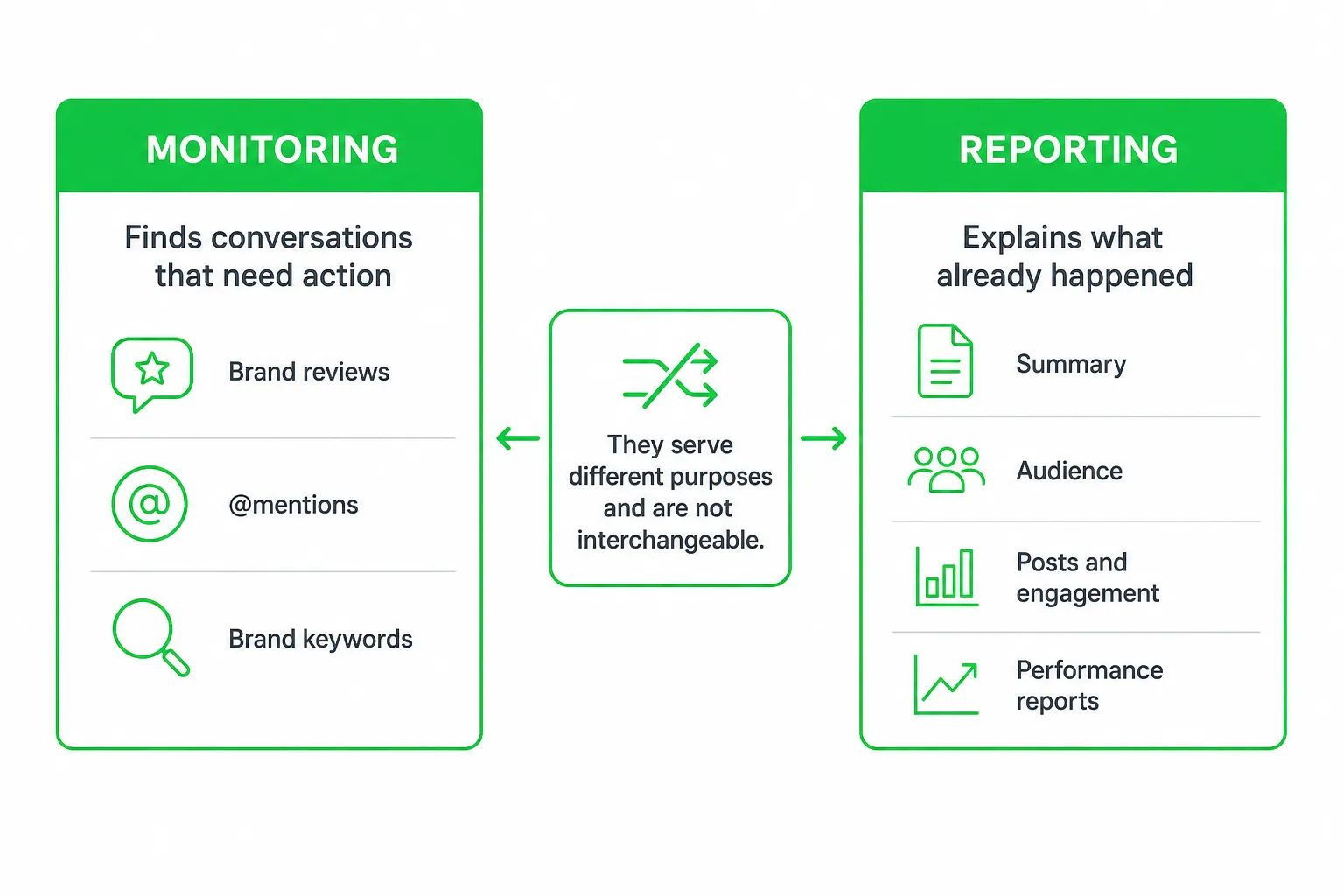
Monitoring is active listening. You use it to find mentions, reviews, keywords, and conversations that may need action now.
Reporting is retrospective measurement. You use it to understand what your posts and channels produced after publishing.
| Task | Use this view | Question it answers |
|---|---|---|
| Find a product mention | Monitoring columns | Who is talking about us? |
| Review a customer interaction | Inbox or monitoring view | Who should respond? |
| Compare content results | Posts and engagement reports | Which posts earned attention? |
| Understand followers | Audience reports | Who is engaging with the brand? |
| Review overall outcomes | Summary or performance reports | What should we change next? |
Zoho Social’s pricing information lists up to 15 monitoring columns on the listed plans, according to Zoho Social Plans and Pricing. Your practical limit depends on how many brands you manage and how many keyword groups deserve constant attention.
Use listening columns for active terms such as your brand name, product name, competitor comparisons, and category questions. Use scheduled reports for recurring team reviews. Use post-level analysis when you are deciding which format or message to repeat. Use audience insights when your targeting or positioning needs work.
Zoho Social automatically generates report metrics for Facebook Pages, X/Twitter Profiles, Instagram Business Profiles, LinkedIn Company Pages, Google Business Profiles, YouTube Channels, and Pinterest Profiles, according to Zoho Social Help.
Zoho Social Plans, Pricing, and Feature Limits
Zoho Social pricing changes, so use the live pricing page before you approve a purchase. Avoid relying on screenshots, comparison posts, or an old internal note.
| Plan or tier | Brands and channels | Team access | Publishing | Reports | Monitoring | Inbox and collaboration |
|---|---|---|---|---|---|---|
| Free | One brand and six social channels | One team member | Confirm current limits on the pricing page | Confirm current report access | Confirm current column access | Confirm current inbox and collaboration access |
| Standard | Confirm current brand and channel limits | Confirm current team limit | Centralized dashboard, scheduling, calendar, drafts, and activity logs | Summary reports included | Confirm current monitoring allowance | Confirm current inbox and collaboration access |
| Higher paid plans | Confirm current capacity by plan | Confirm current team and approval features | Confirm current publishing limits | Confirm advanced report access | Confirm monitoring column allowance | Confirm inbox, roles, and collaboration features |
This matrix deliberately separates confirmed details from items you must verify. Zoho’s plan page is the source of truth for current price, brands, channels, monitoring columns, inbox availability, report depth, approvals, and collaboration restrictions. Those limits can decide whether the dashboard fits your operating model.
Zoho Social offers a 15-day free trial. If you do not upgrade, the account moves to a limited free plan, according to Zoho Social Plans and Pricing.
Before buying, test the exact tasks your team repeats: publish a post, create a listening column, open a conversation, assign follow-up, export or review a report, and invite the people who need access. A feature listed on a product page is not the same as a workflow your plan supports.
A Practical Zoho Social Dashboard Workflow
- Connect channels: Add the networks and brands your SaaS team actually uses. Remove channels that will not receive regular content or monitoring.
- Prepare the queue: Create drafts, add post copy and media, choose the destination channels, and check the activity log before publishing.
- Schedule and review: Use the calendar to preview planned posts and reschedule them by dragging and dropping, as described by Zoho Social Features.
- Build monitoring columns: Add your brand terms, product terms, relevant reviews, and high-intent category keywords. Filter noise before you assign response work.
- Respond deliberately: Check inbox and monitoring views, decide whether to reply publicly, and record any sales or customer-success follow-up.
- Measure the cycle: Review posts and engagement, audience, summary, and performance reports. Turn the findings into the next content queue.
Do not treat monitoring as a passive dashboard. Review it on a defined schedule, decide which conversations require a response, and close the loop after someone replies.
Zoho Social Alternatives for SaaS Teams
Zoho Social is strongest when you want an organized social publishing and reporting workspace. Alternatives make more sense when you need conversation intelligence, heavier automation, or content operations that extend beyond social channels.
| Option | Best fit | Strengths to evaluate | Trade-offs |
|---|---|---|---|
| Zoho Social | Teams prioritizing structured social management | Publishing calendar, monitoring columns, reports, and a familiar workspace | Validate plan limits, inbox depth, network coverage, and collaboration fit |
| Native social suites | Teams focused on scheduling and channel-specific analytics | Deep publishing controls and native network workflows | May require separate tools for broader listening, SEO, or lead handling |
| Specialist listening tools | Teams focused on conversation intelligence | Monitoring, sentiment workflows, alerts, and brand research | May not cover content production or full publishing operations |
| AI marketing platforms | SaaS teams connecting content, distribution, and growth work | Drafting, adaptation, publishing, SEO workflows, and automation | Check review controls, channel support, voice quality, and total cost |
OneUp Today is an alternative when you want one draft adapted for connected platforms alongside SEO and blog autopilot. It can research keywords, create on-brand articles with diagrams and schema, publish them to WordPress or another stack, and track rankings on Google and Bing plus AI citations.
Its publishing model also gives you a direct way to plan spend: pick your daily mix and see the week’s cost upfront. OneUp Today lists scheduling as free, $0.02 per post, $0.10 per image, $0.50 per video, and $0.02 per X post at OneUp Today. Treat that as a different buying model from a conventional social dashboard subscription.
Which Dashboard Should Your SaaS Team Choose?
Choose Zoho Social when your main requirement is structured multi-channel publishing, listening columns, team approvals, and native social reporting in one dashboard.
Choose an alternative when you need broader AI content operations, deeper community discovery, automated lead handling, or SEO and blog workflows connected to social publishing.
Use this checklist before you decide:
- Which brands and social channels must you manage?
- How many contributors need access?
- How many keyword and mention streams need monitoring?
- Do you need an inbox, assignment rules, and approvals?
- Which reports will guide your next publishing cycle?
- Does social activity need to connect to pipeline generation?
- Will the tool support your SEO, blog, and content distribution workflow?
The best dashboard is the one your team can run every week without exporting work into several other tools. Test the relevant Zoho Social plan against a real publishing, monitoring, response, and measurement workflow. Then run that same workflow in your preferred alternative and compare the gaps.
Bottom line: Zoho Social gives SaaS teams a clear home for publishing, listening, and reporting. Your next step is practical: connect the channels you use, test one full workflow, and verify every plan limit before you switch or commit.
Frequently asked questions
Can I track leads from social media in the Zoho Social dashboard?
Yes, Zoho Social includes lead tracking via its CRM integration. You can capture leads from social interactions and assign them to team members for follow-up, but this feature is limited to higher-tier plans.
How many social channels does the Zoho Social free plan support?
The free plan supports up to six social channels. This includes popular networks like Facebook, Twitter, LinkedIn, and Instagram, but you can only manage one brand with a single team member.
Does the Zoho Social dashboard include a built-in approval workflow?
Yes, Zoho Social offers an approval workflow for posts, but it is only available on the Professional plan and above. This allows team members to submit drafts for review before publishing.
Can I monitor multiple brands in one Zoho Social dashboard?
No, the dashboard displays one brand at a time. To manage multiple brands, you need to switch between them or upgrade to a plan that supports multiple brands, such as the Agency plan.