
Havok Content Tools: Options for SaaS Teams
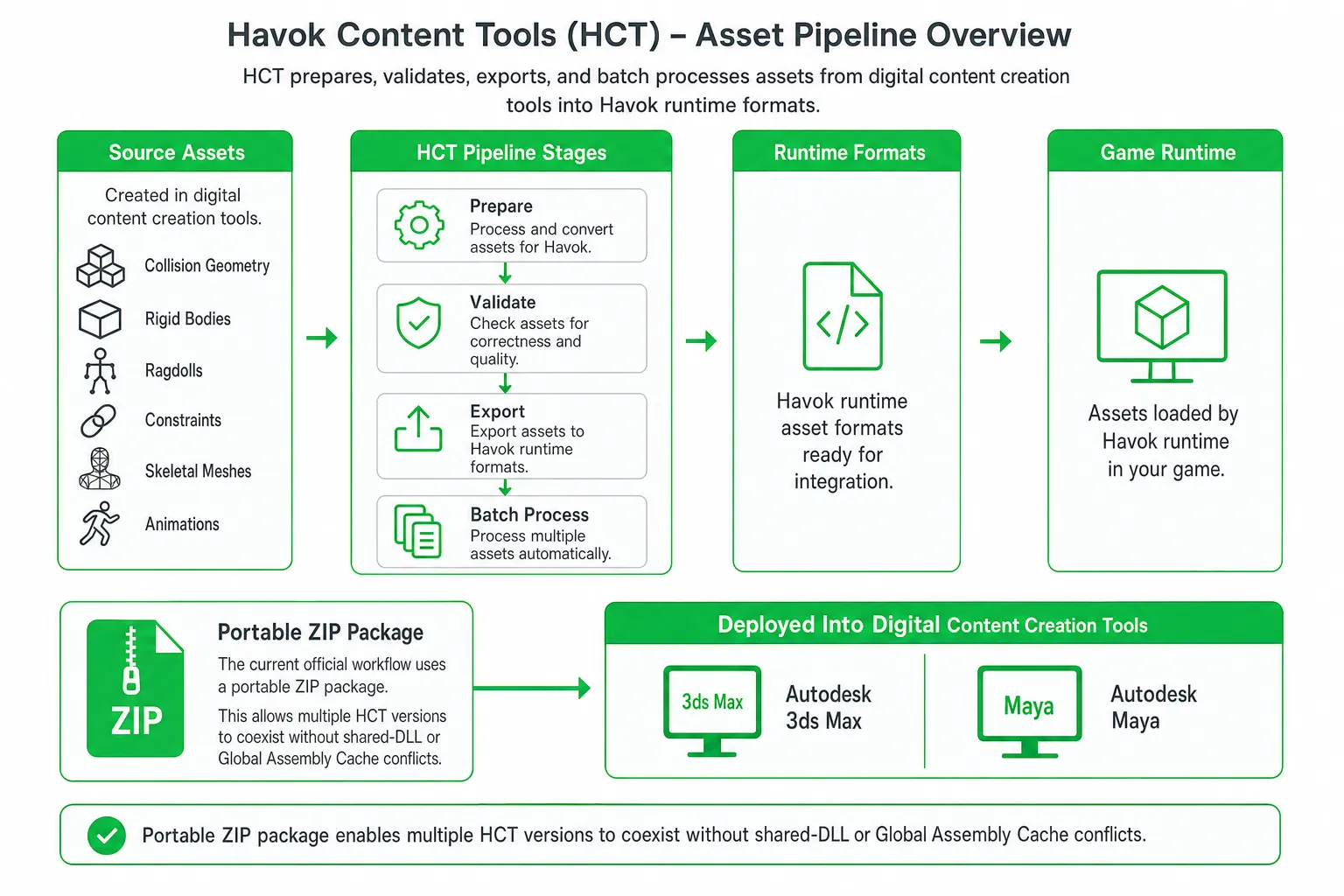
Havok Content Tools are game-development tools for preparing, validating, and exporting assets into Havok runtime formats. For current projects, use the official HCT package from Havok’s registered developer portal, where the portable ZIP workflow supports side-by-side versions and deployment into Autodesk 3ds Max and Maya.
That distinction matters. Many search results still focus on legacy installers, version listings, and forum advice. The current workflow is different, and choosing the wrong package can create avoidable pipeline and compatibility problems.
Key takeaways
- HCT prepares game assets such as collision geometry, rigid bodies, ragdolls, constraints, skeletal meshes, and animations.
- Havok’s current distribution uses a self-contained portable ZIP, allowing multiple versions to coexist without shared-DLL or Global Assembly Cache conflicts.
- The official download path requires registered Havok SDK developer access.
- Use the current package for new work. Keep legacy installers only when an existing project depends on them.
- HCT is for game asset pipelines, not SaaS marketing or AI content creation.
What Are Havok Content Tools?
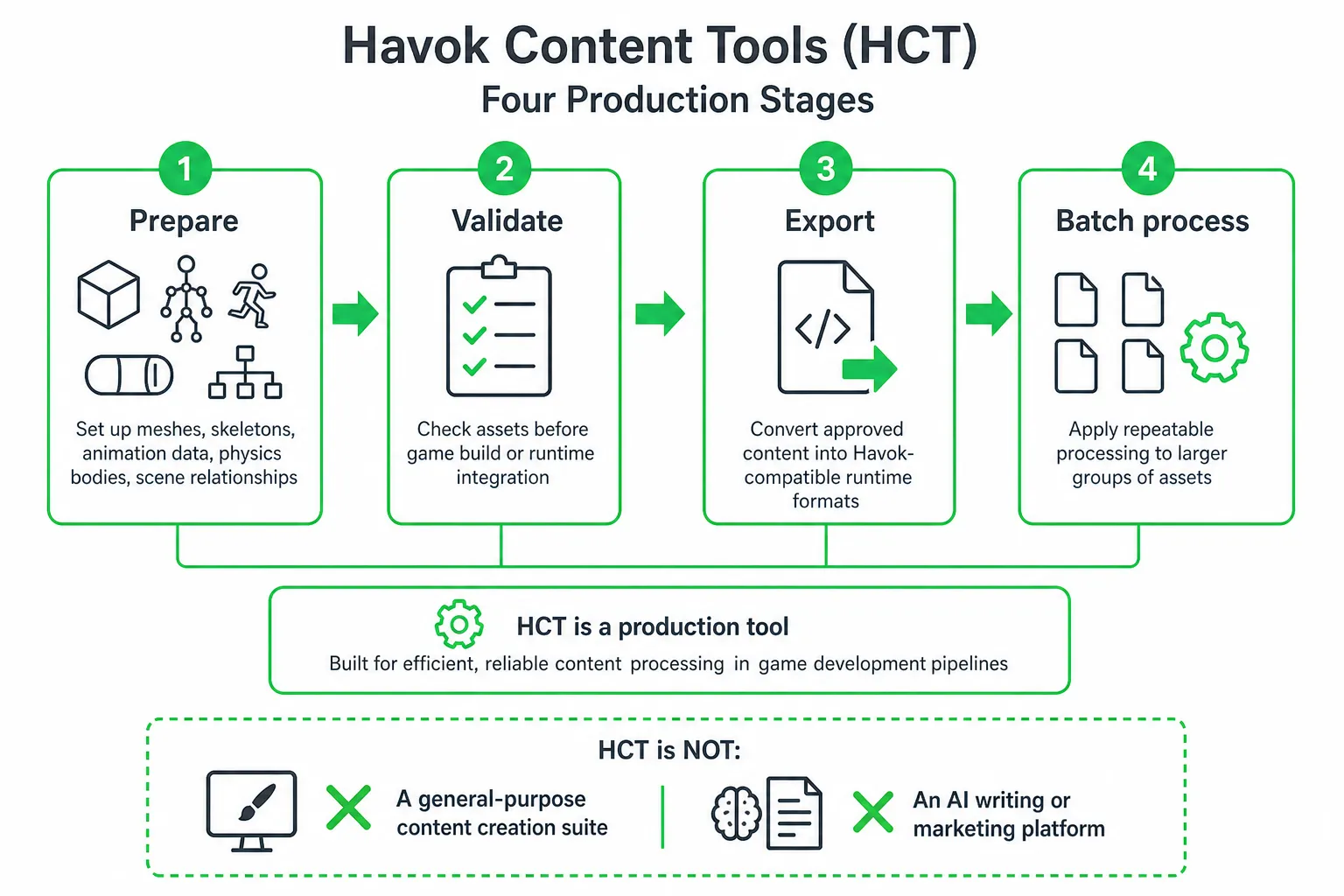
Havok Content Tools, usually abbreviated as HCT, are a game-development asset pipeline. They help you prepare, validate, and export content from digital-content creation tools into formats used by Havok runtime systems.
A third-party Software Informer product listing describes HCT as supporting collision geometry, rigid bodies, ragdolls, constraints, skeletal meshes, animations, batch processing, and validation. That makes HCT relevant to artists, technical artists, technical directors, and build engineers working on Havok-based projects.
Meet the asset pipeline: From scene data to runtime content
You can use HCT to move content through several production stages:
- Prepare: Set up meshes, skeletons, animation data, physics bodies, and scene relationships.
- Validate: Check assets before they reach a game build or runtime integration.
- Export: Convert approved content into Havok-compatible runtime formats.
- Batch process: Apply repeatable processing to larger groups of assets.
That makes HCT a production tool, not a general-purpose content creation suite. You still create most source assets inside a digital-content creation application. HCT handles the preparation and handoff into the Havok pipeline.
HCT is also not an AI writing or marketing platform. If you searched for havok content tools because you need SEO articles, blog publishing, or SaaS lead generation, you are looking at a different category of software. OneUp Today is designed for that marketing workflow, combining SEO and blog automation with Reddit lead generation, personalized outreach, and multi-platform publishing.
The Current Official HCT Workflow
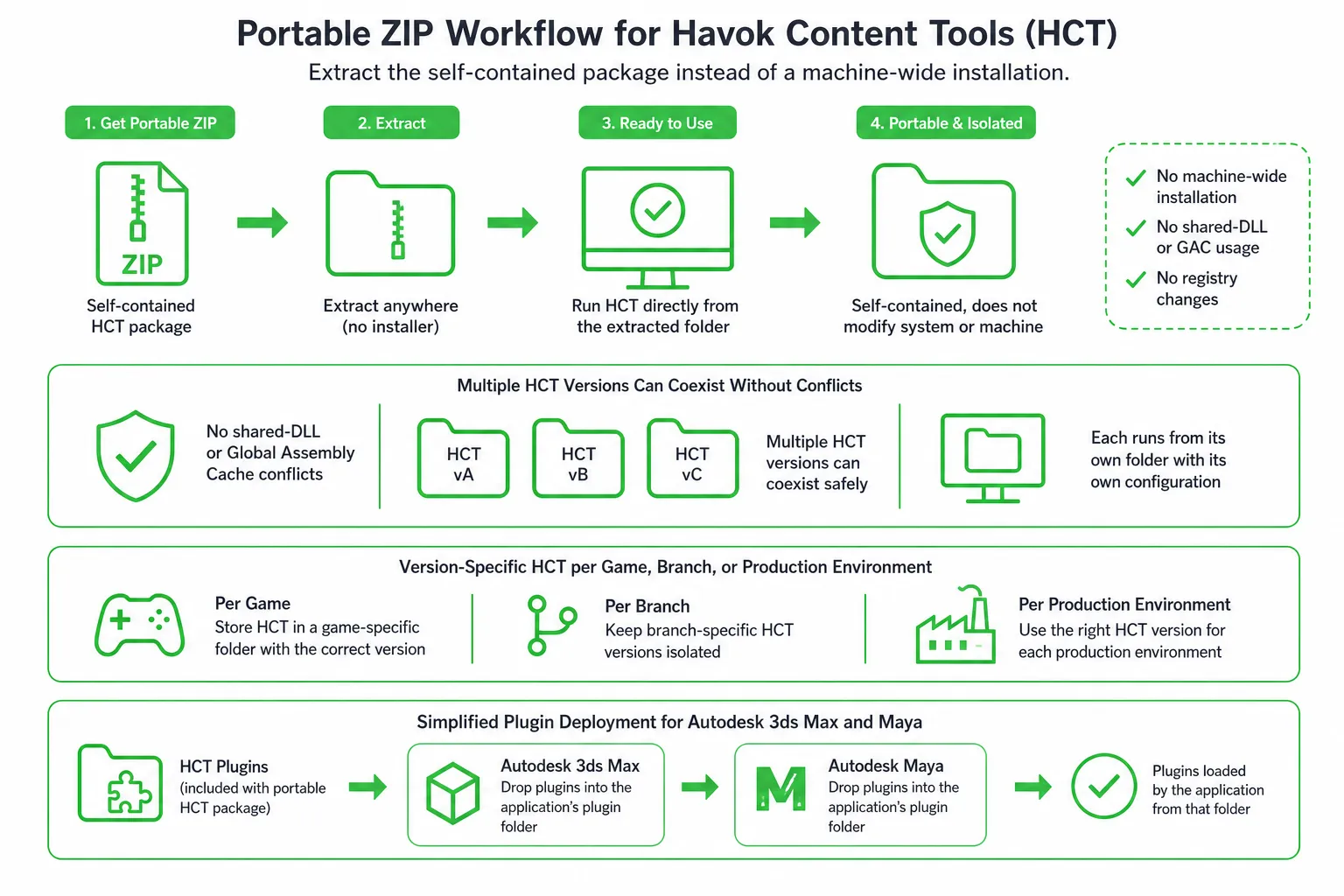
Havok’s current HCT workflow uses a self-contained portable ZIP. You extract the package instead of treating HCT as one machine-wide installation. According to Havok’s 2025.2 release highlights, this approach allows multiple HCT versions to coexist without shared-DLL or Global Assembly Cache conflicts.
That changes how you manage projects. You can keep a version-specific HCT folder for each game, branch, or production environment. Artists can select the package required by their project without uninstalling the package used by another project.
Meet the portable package: Isolated and easier to switch
The portable distribution is designed to simplify plugin deployment for Autodesk 3ds Max and Maya. It also lets artists switch versions without disrupting an established pipeline, as described in Havok’s deployment guidance.
There is one access detail that legacy listings often omit. HCT is not simply a public freeware download. Havok’s official download portal restricts access to registered Havok SDK developers.
In practice, the current path is:
- Confirm that your studio or project has registered Havok SDK developer access.
- Download the HCT package from Havok’s official portal.
- Extract it into a folder named for the project or version.
- Deploy the relevant plugin for 3ds Max or Maya.
- Test a small asset before moving the setup into production.
What HCT Can Do for a Game Pipeline
HCT supports the handoff between content creators and the Havok runtime. That handoff includes more than mesh export. You may need physics bodies, constraints, skeletal data, animation data, and validation rules to travel together.
Meet the validation workflow: Catch export problems early
Validation helps you find problems before assets enter a build or reach engineering. A repeatable validation step can check whether an asset contains the expected structures, settings, and export data.
Batch processing also matters when your project contains many similar assets. Instead of preparing every file manually, you can apply a consistent export and validation process across a collection of content.
- Physics artists: Prepare collision geometry, rigid bodies, ragdolls, and constraints.
- Character artists: Prepare skeletal meshes and animation data.
- Technical artists: Configure export rules, troubleshoot DCC behavior, and document the pipeline.
- Build engineers: Integrate repeatable processing and validation into the content workflow.
Historical documentation lists compatibility with Autodesk 3ds Max, Maya, and Softimage in the historical product documentation. Treat Softimage references as legacy context. Verify compatibility against the SDK package and documentation you actually receive.
How to Install and Use HCT
HCT installation is now best understood as a controlled extraction and deployment process rather than a traditional single-install setup.
Meet the project folder: Keep each environment separate
Start by confirming access. Your studio or project needs registered Havok SDK developer access before you can obtain the current package from the official portal.
Next, extract the portable ZIP into a version-specific location. Do not overwrite an existing HCT folder if another project depends on it. A useful structure might separate packages by project, SDK release, or pipeline branch.
Then deploy the relevant plugin into your DCC environment. The current workflow specifically targets Autodesk 3ds Max and Maya, so test the integration inside the DCC application used by your artists.
- Confirm access: Verify your registered SDK developer account and project permissions.
- Download: Obtain HCT from Havok’s official download portal.
- Extract: Place the portable package in a version-specific folder.
- Deploy: Configure the 3ds Max or Maya plugin required by the project.
- Configure: Set content paths, export paths, and runtime-related settings.
- Test: Run a small mesh, character, or physics asset through export and validation.
- Document: Record the HCT package, DCC version, export settings, and runtime target.
That final step is easy to skip. Do not skip it. A pipeline is only reproducible when another artist can identify the package, DCC setup, export settings, and runtime target used to create an asset.
Havok Content Tools Options Compared for Teams
You usually have three practical choices: use the current official package, maintain a legacy package, or build a narrower custom export process. The right option depends on whether you are starting new work or preserving an existing pipeline.
| Option | Best for | Strengths | Risks or limits |
|---|---|---|---|
| Current official HCT package | New Havok-based projects | Portable version management, current developer access path, and deployment for 3ds Max and Maya | Requires registered Havok SDK developer access |
| Legacy installer or archived download | Maintaining an older project or mod | May match an existing project’s historical pipeline | Possible compatibility, licensing, security, and reproducibility concerns |
| Manual or custom export pipeline | Narrow workflows with strong engineering support | Can reduce dependence on HCT for a specific asset path | Requires engineering effort and may omit Havok-specific validation or preparation |
The current official package is the strongest default for new work. It gives you the supported access path and the portable workflow designed for side-by-side project environments.
A legacy package can still make sense when an existing game, mod, or toolchain specifically depends on it. Treat that as a maintenance decision, not a recommendation for new production.
A custom exporter may work for a narrow asset type. Before choosing it, confirm that you can reproduce the validation, physics preparation, animation handling, and runtime formatting your project requires.
What Changed in the Newer Workflow?
The most practical change is distribution. Portable packages replace the assumption that HCT must behave like one machine-wide installation. That makes side-by-side project environments easier to manage and reduces the need to uninstall a working setup before testing another one.
Havok’s 2025.2 release highlights also describe full dual-quaternion skinning support for the object-space skin operator. The same release notes report that the sequential mesh-mesh deformer can be up to 2.4 times faster than legacy implementations.
Do not apply that information blindly to every pipeline. Confirm the behavior inside the package and DCC integration provided to your team. A legacy tutorial may describe an installer, plugin path, or configuration model that no longer matches the current portable workflow.
Meet the version manager: Choose per project, not per machine
Side-by-side management is useful when one project needs an older validated environment while another adopts a newer package. Keep the folders isolated, document which project uses which package, and test the export path after every meaningful pipeline change.
Which HCT Option Should You Choose?
Choose the current official HCT package when you are starting a new Havok-based project, need controlled version management, or want a deployment path aligned with current 3ds Max and Maya workflows.
Choose a legacy package only when an existing project depends on it. Verify the source, licensing, DCC compatibility, runtime requirements, and reproducibility before putting it back into production.
If your real goal is SaaS growth rather than game asset preparation, use a marketing tool for that job. OneUp Today’s AI marketing team can help you find high-intent Reddit conversations, draft personalized replies and DMs, publish content, and keep you in control by requiring approval before sending.
Bottom line: Download current HCT through Havok’s registered developer process, extract it into an isolated folder, deploy the 3ds Max or Maya integration, and validate a representative asset. Your next step is to document that tested setup so the rest of your team can reproduce it.
Frequently asked questions
What file formats does Havok Content Tools export?
Havok Content Tools exports assets into Havok runtime formats, such as.hkb for physics and.hkanim for animations. These proprietary formats are optimized for game engines and require the Havok SDK to use.
Can Havok Content Tools be used with Unreal Engine or Unity?
No, Havok Content Tools are designed specifically for Havok runtime systems, not directly for Unreal Engine or Unity. However, assets exported via HCT can be integrated into these engines if they support Havok middleware.
Is Havok Content Tools free to download?
No, Havok Content Tools are not free; they require a registered Havok SDK developer account for access. The portable ZIP package is available only through the official developer portal, not as public freeware.
How do I install multiple versions of Havok Content Tools on one machine?
Extract each portable ZIP into separate folders to install multiple HCT versions. This avoids shared-DLL conflicts, allowing you to switch versions per project without uninstalling others.
Does Havok Content Tools support batch processing for animations?
Yes, Havok Content Tools support batch processing for animations and other assets. This feature lets you apply repeatable processing steps to multiple files, streamlining pipeline workflows for large projects.