
How to Check Google Ranking of Website
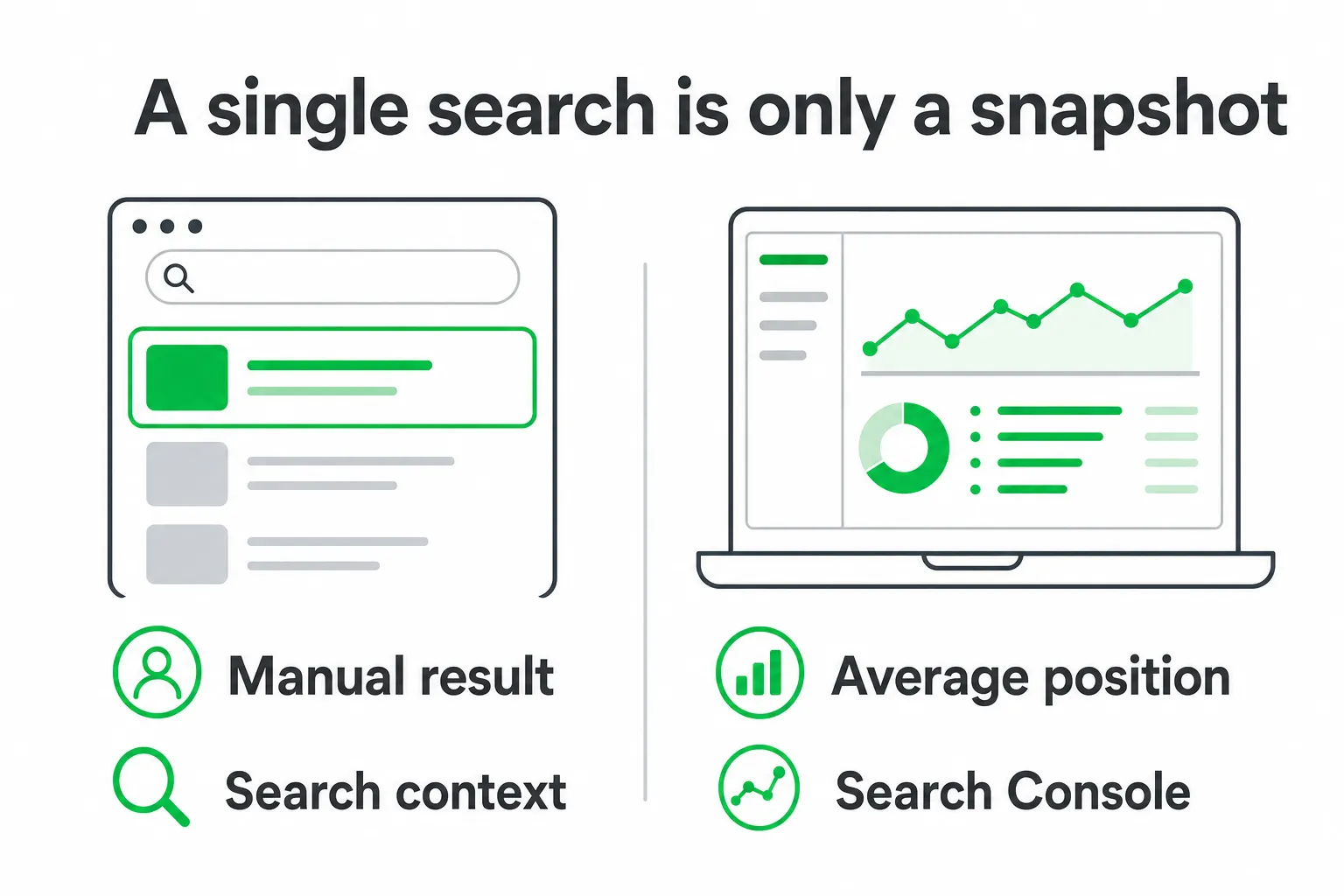
To check the Google ranking of your website, open Google Search Console, go to Performance, and review your queries, pages, clicks, impressions, CTR, and average position. For a quick spot-check, search your keyword manually, but treat that result as a snapshot rather than your definitive ranking.
The distinction matters. An average position is not the same as the position you see in one search, and an indexed page is not automatically ranking for your target keyword. Use the workflow below to separate those signals and decide what to improve next.
Key takeaways
- Use Google Search Console for the most useful picture of your website’s actual search performance.
- Filter a keyword by page, country, device, and date before drawing conclusions.
- Keep average position, manual ranking, and indexation status separate.
- Read rankings alongside impressions, clicks, and CTR.
The quickest way to check your website’s Google ranking
Start with Google Search Console. Select the correct website property, then open Performance > Search results. Choose the date range you want to analyze.
- Open the Queries tab and look for the keyword you want to investigate.
- Select the query to see the pages Google displayed for that search.
- Review clicks, impressions, CTR, and average position for the filtered result.
- Break the data down by country and device if your audience is spread across markets or platforms.
- Compare the same query and page across different date ranges.
For a fast manual check, open a private browsing window and search the keyword. Remove obvious personalization where possible, then record the result, the URL that appears, and any major search features such as maps, shopping results, videos, or featured answers.
Do not treat that manual result as universal. Your location, device, language, timing, personalization, and the search results shown around the organic listings can all affect what you see.
Use Google Search Console for real search performance
Search Console shows four core metrics for your site’s Google Search performance: clicks, impressions, click-through rate, and average position. See Google Search Console Help for the report definitions.
These metrics answer different questions:
- Clicks: How often searchers visited your website from Google.
- Impressions: How often a page from your site appeared in search results.
- CTR: How often an impression led to a click.
- Average position: The average position associated with your site’s search impressions.
Open the Queries tab to find searches that generated visibility for your website. Search for a specific keyword, close variations, or a phrase that reflects the page’s target intent.
Then select the query and open the Pages tab. This shows which URL Google displayed for that keyword, as explained in Google Search Console Help.
This page-level check often reveals a problem that a single ranking number hides. You may think your services page ranks for a commercial query, while Google is actually showing an older blog post. That can indicate competing pages, unclear internal linking, or a mismatch between the query and the page’s content.
Export or record the result regularly. Keep the query, URL, clicks, impressions, CTR, average position, country, device, and date range together so you can compare like with like.
How to check a keyword by page, country, device, and date
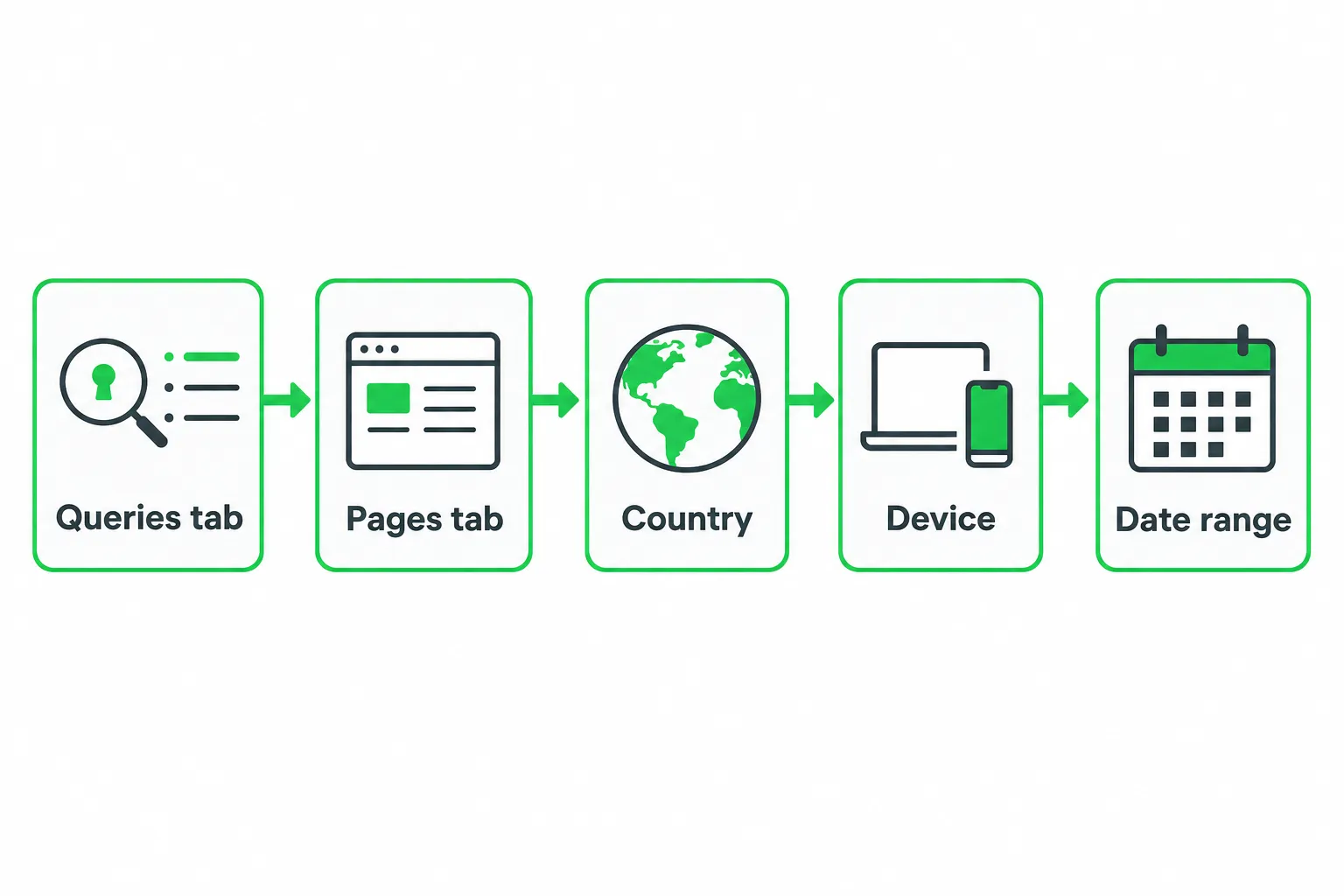
A useful ranking check is not simply “What position is my keyword?” Ask a narrower question: Which page did Google show for this query, for which audience, during which period?
- Filter by query: Enter the exact keyword or search phrase you want to investigate.
- Inspect the page: Open the Pages tab and identify the URL receiving impressions and clicks.
- Add a page filter: Compare the intended URL with other pages that appeared for the same query.
- Set the country: Choose the market that matches the audience you care about.
- Set the device: Separate mobile and desktop performance when the experience or search intent differs.
- Compare dates: Use matching filters across two periods to identify changes.
Search Console supports grouping and filtering by queries, pages, countries, devices, search appearance, and dates. You can also filter performance data by query or URL and compare countries, devices, search types, or search appearances. See Google Search Console Help and Google Search Console Help.
Here is a practical example. Suppose you target “customer support chatbot for SaaS.” First filter the query. Then open Pages to see whether your product page, comparison page, or blog article receives visibility. Add the target country and device. Finally, compare the current period with an earlier period using the same filters.
That sequence prevents you from mixing desktop and mobile results, different markets, unrelated pages, or different periods into one misleading ranking conclusion.
Average position, manual ranking, and indexation are different
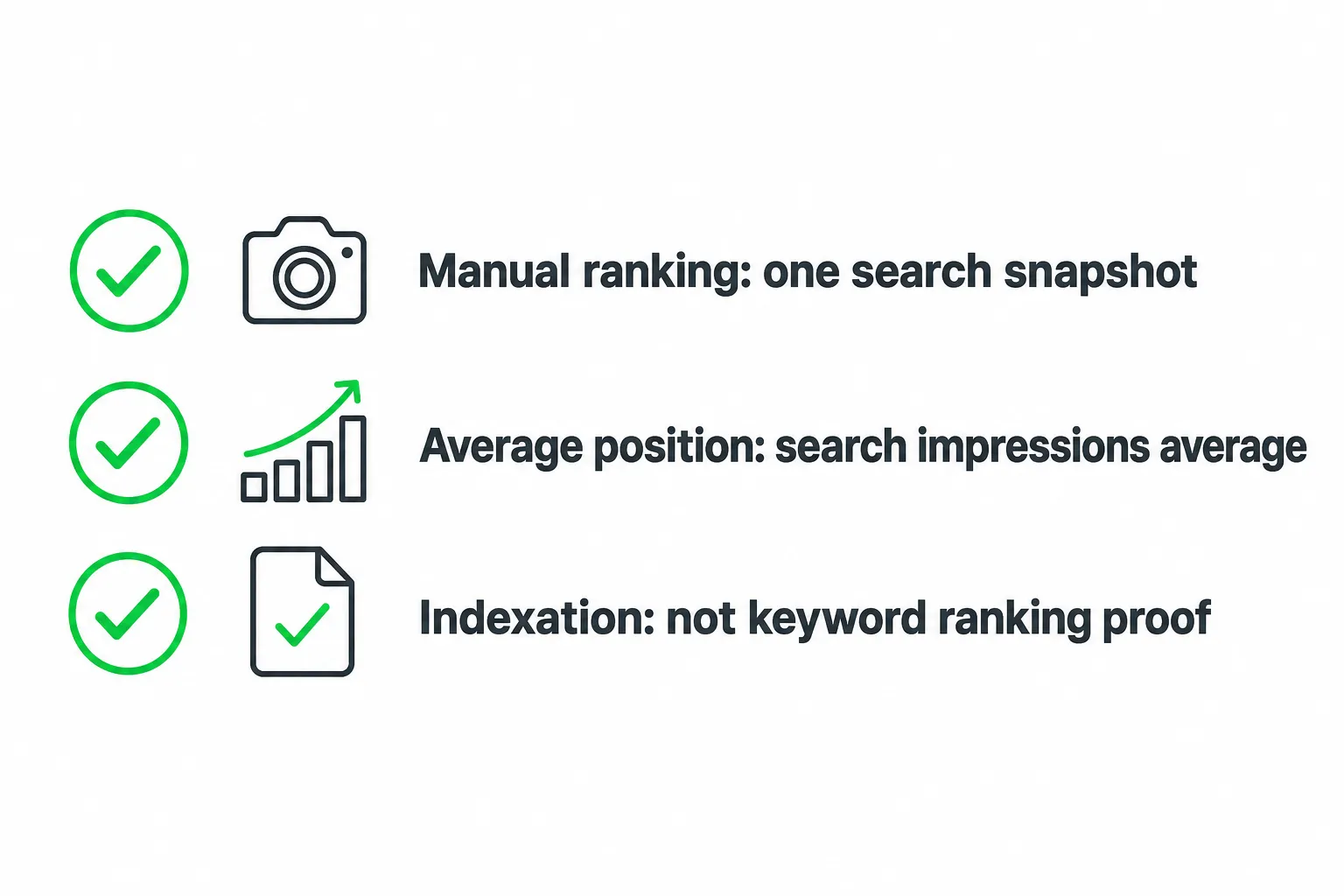
Average position: Search Console calculates this from the topmost position occupied by your site’s result across impressions. It may therefore differ from the position you see during one manual search. See Google Search Console Help.
Manual ranking: This is the position you observe when you search a keyword yourself. It is a snapshot influenced by your location, device, language, personalization, timing, and the result features on the page.
Indexation status: This tells you whether Google has processed a URL for possible inclusion in its index. It does not tell you that the page ranks well for a target keyword.
Use the URL Inspection tool when you need to check a specific page. It reports whether the URL is indexed and can test whether the live version is eligible for indexing. However, an indexed URL is not guaranteed to appear in search results, according to Google Search Console Help.
| Signal | What it tells you | What it does not tell you |
|---|---|---|
| Average position | How your result performed across Search Console impressions | The exact position every searcher sees |
| Manual ranking | Where you observed a result in one search | How the result performs across audiences and dates |
| Indexation | Whether Google has processed a URL for possible inclusion | Whether the page ranks for your target keyword |
When to use a rank-tracking tool instead
Use a dedicated rank tracker when you need scheduled keyword monitoring, controlled locations and devices, competitor comparisons, historical changes, or alerts. These tools let you define a keyword set and check it under consistent conditions.
Choose a tool that supports the search engines, countries, locations, devices, SERP features, keyword groups, and reporting schedule relevant to your business. A local service business may care about a specific city. A SaaS company may need country-level comparisons and desktop versus mobile visibility.
| Use case | Best source | Why |
|---|---|---|
| Find queries already bringing visibility | Search Console | Shows real queries, clicks, impressions, CTR, and page-level data |
| Monitor a chosen keyword set | Rank tracker | Provides a controlled, repeatable view of selected terms |
| Check whether a URL is indexed | URL Inspection | Reports indexation and live URL eligibility |
| Diagnose a page targeting issue | Search Console plus page review | Connects the query to the URL Google actually displayed |
Use Search Console for the searches your site actually receives. Use a rank tracker for the target keywords you want to monitor consistently.
OneUp Today combines SEO article automation with Google and Bing rank tracking. Its workflow can connect a published article with later ranking changes without forcing a small team to maintain separate content and monitoring processes. The platform also states that scheduling is free, with $0.02 per post $0.10 per image $0.50 per video $0.02 per X post. See OneUp Today for its published pricing details.
How to interpret the ranking data and decide what to do
Ranking data becomes useful when you connect it to user behavior.
- High impressions and low CTR: Review the title, meta description, search intent match, and visible SERP features. Searchers may see your result but choose another listing.
- Clicks going to the wrong page: Check for keyword cannibalization, competing URLs, weak internal links, or a page that does not match the query’s intent.
- Low impressions: Review whether the page is new, whether the content matches the query, whether the topic has limited visibility, and whether Google has selected the page for that search.
- Improving impressions but flat clicks: Look for a snippet problem or a change in the search results that makes your listing less attractive.
- More clicks without a better average position: Check whether impressions, CTR, or the mix of queries changed. A single position metric cannot explain the whole result.
Google recommends focusing on trends in impressions and clicks rather than treating absolute average position as the only measure of search performance. See Google Search Central.
Make one focused change at a time where possible. For a low-CTR page, test a clearer title and snippet. For the wrong ranking URL, improve topical targeting and internal links. For low impressions, confirm indexation and then assess content quality, intent, and search demand.
A repeatable Google ranking check workflow
- Verify the property: Select the correct Search Console property and confirm the URL version you are analyzing.
- Choose the date range: Set the period you want to review before applying filters.
- Filter the query: Enter the target keyword in the Queries tab.
- Inspect the Pages tab: Confirm whether the intended URL receives impressions and clicks.
- Break down the audience: Filter by country and device to match your target market.
- Compare periods: Use the same query, page, country, and device filters when comparing dates.
- Check indexation: Use URL Inspection if the page has no visibility or you are unsure whether Google processed it.
- Record the result: Save the query, ranking URL, clicks, impressions, CTR, average position, country, device, and date range.
- Make one improvement: Choose the action suggested by the data, then check the same filters again later.
This process gives you a more reliable answer than searching your keyword once. It shows what Google displayed, which page appeared, which audience saw it, and whether visibility led to visits.
Next step: Open Search Console now, filter one important query, and inspect its Pages tab. Start with the URL Google is actually showing. That is the page your next SEO decision should address.
Frequently asked questions
Why does my website show different Google rankings on different devices or locations?
Google rankings can vary by location, device, language, search history, and the results displayed for a query. For example, a local search may show different businesses to people in different cities. Compare results using the same country, device, and date range to make changes easier to interpret.
Does Google Search Console show my website’s exact current ranking?
No, Google Search Console reports average position across the impressions included in your selected filters and date range, not one exact live rank. A query may show your site in different positions for different searches or search results, so use the report to understand trends rather than a single snapshot.
Why is my website indexed but not ranking for my target keyword?
Indexing means Google can include a page in its search index; it does not guarantee that the page will rank for a particular keyword. Google may consider another page more relevant, or the indexed page may have limited visibility for that query. Check Search Console’s query and page data to see what appears.
How often should I check my website’s Google rankings?
Check your rankings regularly, such as weekly or monthly, using a consistent date range and filters. Search results fluctuate, so frequent spot-checks can make normal variation look like a meaningful change. For decisions, compare trends in impressions, clicks, CTR, and average position alongside the page Google showed.